Employee Organizational Relationship
An employee organizational relationship is established when the person who is hired provides services to an organization on a regular basis in exchange for compensation. This person does not provide these services as part of an independent business.
- To add an employee on the EmpowHR Main Menu page, select the Workforce Administration menu group.
- Select the Personal Information menu.
- Select the Biographical menu item.
- Select the Modify a Person component. The Personal Data page - Find an Existing Value is displayed.
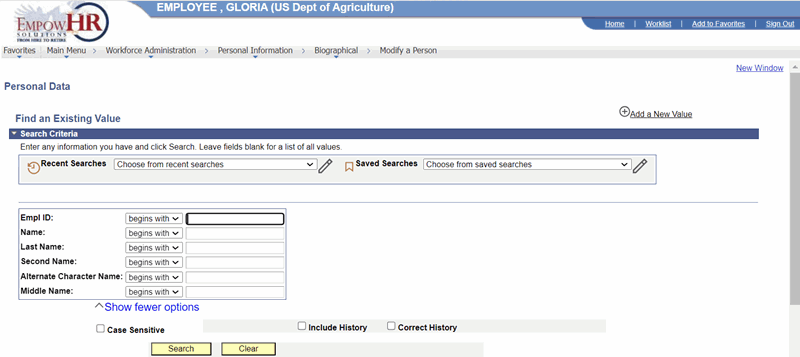
Figure 9: Personal Data Page - Find an Existing Value
- Select Add a New Value. The Personal Data Page - Add a New Value is displayed.
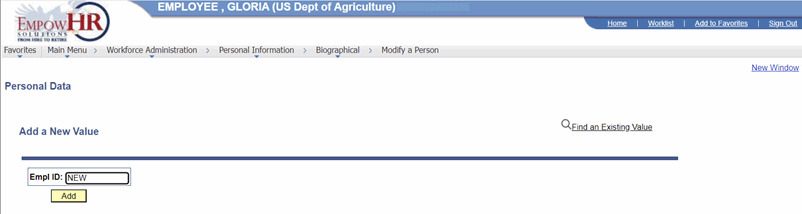
Figure 10: Personal Data Page - Add a New Existing Value
- Complete the field as follows:
|
Field |
Description/Instruction |
|
Empl ID |
Populated with the system-assigned ID when you are adding a new person. The value will display as New until the record is saved. |
- Select Add the Person. The Add a Person page - Biographical Details tab is displayed.
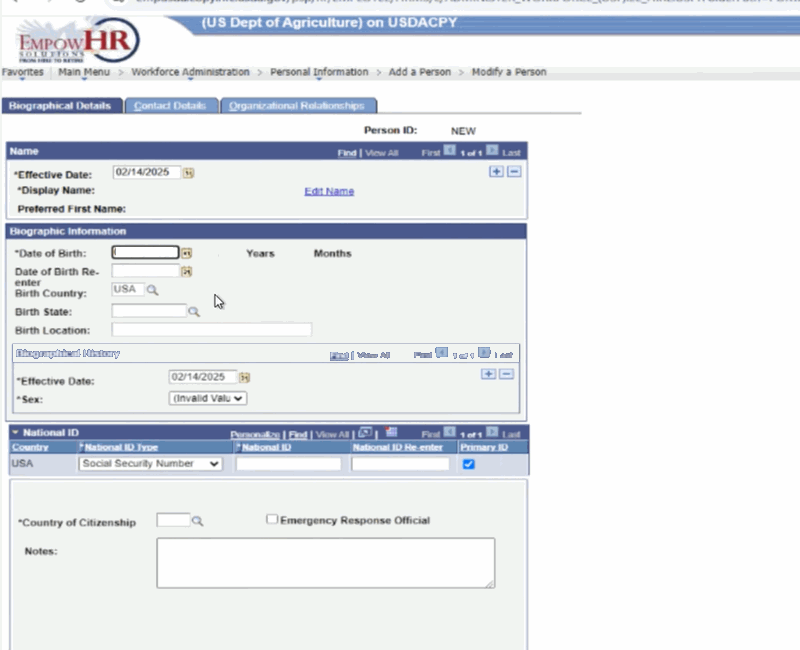
Figure 11: Add a Person Page - Biographical Details Tab
- Complete the fields as follows:
|
Field |
Description/Instruction |
|
Person ID |
Populated with the system-generated Person ID. |
|
Name |
Description/Instruction |
|
*Effective Date |
Required field. Enter the effective date of the action or select a date by selecting the calendar icon. The date entered or selected will be populated in the Personnel Action Request (PAR) section. |
|
*Display Name |
Required field. Populated with data entered from Add Name. See field instructions for Add a Name. The name entered on this link will be populated in the PAR section. Note: Add a Name becomes Edit Name if the person’s name has been added. |
|
Biographic Information |
Description/Instruction |
|
*Date of Birth |
Required field. Enter the person’s date of birth or select a date by selecting the calendar icon. The calculated age is displayed to the right of the field. If this field is left blank, a warning message appears when the record is saved. This information is used to calculate a person’s age in some tasks, such as the expected retirement date, based on the person’s age. The date entered or selected will be populated in the PAR section. |
|
Years |
Populated based upon data entered on the *Date of Birth field. |
|
Months |
Populated based upon data entered on the *Date of Birth field. |
|
Date of Birth Re-enter |
Reenter the date of birth entered on the previous field. If you leave this field blank, an error message will appear. |
|
Birth Country |
Enter the birth country or select a country by selecting the search icon. Based on the selected country, the system may display additional fields. The birth country entered or selected will be populated in the PAR section. |
|
Birth State |
Enter the birth State or select a State by selecting the search icon. The birth State entered or selected will be populated in the PAR section. |
|
Birth Location |
Enter the birth location. Usually a city, town, or village. The birth location entered will be populated in the PAR section. |
|
Biographical History |
Instruction |
|
Date |
Required field. Enter the effective date or select a date by selecting the calendar icon. |
|
*Sex |
Required field. Select the applicable sex from the drop-down list. Valid values are Male and Female. The sex selected in this field will be populated in the PAR section. |
|
National ID |
Description/Instruction |
|
Country |
Populated with USA. |
|
*National ID Type |
Required field. Defaults to the SSN and cannot be changed. |
|
*National ID |
Required field. Enter the SSN. The SSN entered here will be populated in the PAR section. |
|
National ID Re-enter |
Reenter the SSN. |
|
Primary ID |
Check this box if this ID is the person’s primary ID. If this is the only data row for this person, the box is checked by default. |
|
*Country of Citizenship |
Required field. Enter the three-position country code or select the search icon to search for the applicable country. |
|
Emergency Response Official |
Check this box if the person being added is an emergency response official. The system defaults to blank. |
|
Notes |
Enter any notes, if applicable. |
- Select the Contact Details tab. The Add a Person page - Contact Details tab is displayed.

Figure 12: Add a Person Page - Contact Details Tab
- Complete the fields as follows:
|
Field |
Description/Instruction |
|
Person ID |
Populated with the system-generated Person ID. |
|
Current Addresses |
Description/Instruction |
|
Address Type |
Select the type of address that appears in this row. The field is populated with Home for the first address entered. Select + to select additional address types and add additional addresses. Note: The data entered for the home and mailing address for Federal employees will be populated in the PAR section. |
|
As Of Date |
Populated with the information entered from the Add Address Detail link. See field instructions for Add Address Detail. |
|
Status |
Populated with the information entered from the Add Address Detail link. See field instructions for Add Address Detail. |
|
Address |
Populated with the information entered from the Add Address Detail link. See field instructions for Add Address Detail. |
|
Add Address Detail |
select this link to display the Address History page to add/edit any address information. For more information, see Add Address Detail. |
|
Phone Information |
Instruction |
|
*Phone Type |
Required field. Select the applicable phone type that corresponds with the telephone number. Select Main to designate a phone number as the individual’s primary contact number. The phone type selected in this field will be populated in the PAR section. |
|
Telephone |
Enter the telephone number. The telephone number entered in this field will be populated in the PAR section. |
|
Extension |
Enter the extension if applicable. The extension data entered here will be populated in the PAR section. |
|
Preferred |
Check this box if this is the person’s preferred phone number. If this box is checked, it will be populated next to the applicable phone information in the PAR section. |
|
Email Addresses |
Instruction |
|
*Email Type |
Required field. Select the email type from the drop-down list. Select + to select additional email address types and add additional email addresses. |
|
*Email Address |
Required field. Enter the email address. |
|
Preferred |
Check this box if this is the person’s preferred email address. |
- Select the Organizational Relationships tab. The Add a Person page - Organizational Relationships tab is displayed.

Figure 13: Add a Person Page - Organizational Relationships Page
- On the Add a Person page - Organizational Relationships tab, check the Employee box.
- Select Add the Relationship to save the data and establish the new person's organizational relationship. The PAR Processing - Hire Employee page - Data Control tab is displayed.
- Complete the fields on the tabs of the Hire Employee page. For more information and instructions on completing these fields, see the EmpowHR PAR Processing procedure manual on the Publications page of the NFC Web site.