Add a Name
- To add a name on the EmpowHR Main Menu page, select the Workforce Administration menu group.
- Select the Personal Information menu.
- Select the Biographical menu item.
- Select the Modify a Person component. The Personal Data Page - Find an Existing Value is displayed.
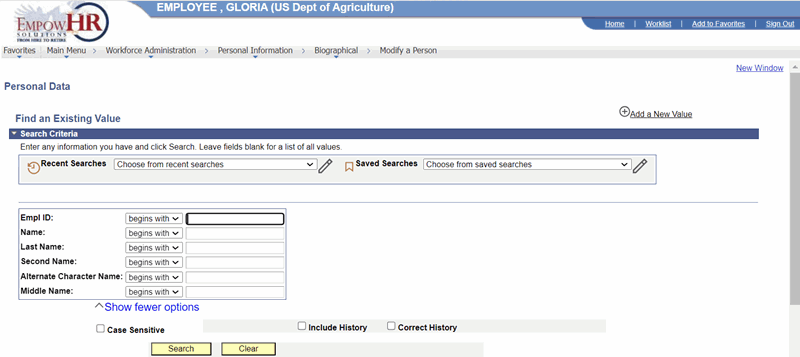
Figure 6: Personal Data Page - Find an Existing Value
- Select Add a New Value. The Personal Data page - Add a New Value is displayed.
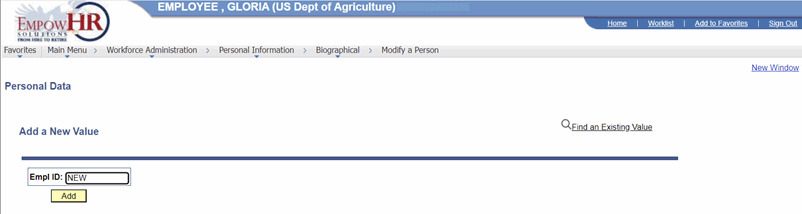
Figure 7: Personal Data Page - Add a New Value
- Complete the field as follows:
|
Field |
Description/Instruction |
|
Empl ID |
Populated with New when you are adding a new person. The value will display as New until the record is saved. |
- Select Add the Person. The Add a Person page - Biographical Details tab is displayed.
- On the Add A Person page - Biographical Details tab, select Add Name. The Edit Name page is displayed.

Figure 8: Edit Name Page
- Complete the fields as follows:
|
English Name Format |
Description/Instruction |
|
Prefix |
Select the applicable prefix from the drop-down list. |
|
*First |
Required field. Enter the person’s first name. |
|
Middle Name |
Enter the person’s middle name. |
|
*Last Name |
Required field. Enter the person’s last name. |
|
Suffix |
Select the applicable suffix from the drop-down list. |
|
Display Name |
Populated with the person’s information entered in the fields above after selecting Refresh. |
|
Formal Name |
Populated with the person’s information entered in the fields above after selecting Refresh. |
|
Name |
Populated with the person’s information entered in the fields above after selecting Refresh. |
At this point, the following options are available:
|
Step |
Description |
|
Select OK |
Accepts the new data entered. The Add a Person page - Biographical Details tab is displayed. |
|
Select Cancel |
Cancels the action. |