|
|
|
|
|


Viewing Discrepancy Summary (Report 2)
The option on the Reports Selection page allows users to view the Discrepancy Summary report. This report provides a comparison of the number of enrollee records with discrepancies occurring in 1 quarter with those that occurred in any other quarter.
To View a Discrepancy Summary Report:
- Select thetab on the CLER Main Menu. The Reports Selection page is displayed.
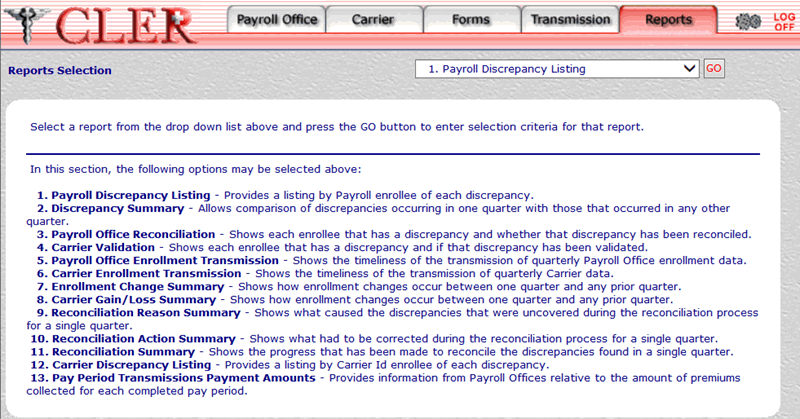
- On the drop-down menu on the Reports Selection page, select
- Select the button to display the 2. Discrepancy Summary page.
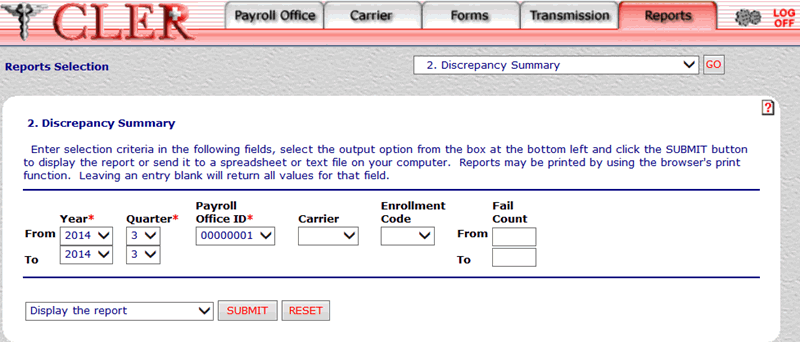
- Complete the following fields on the 2. Discrepancy Summary page:
- Select the drop-down menu at the bottom of the page and select one of the following format options:
- Display the report.
- Save report as a spreadsheet.
- Save report as a text file.
- Select the button to display the Discrepancy Summary report in the selected format.
OR
Select the button to clear all data entered.
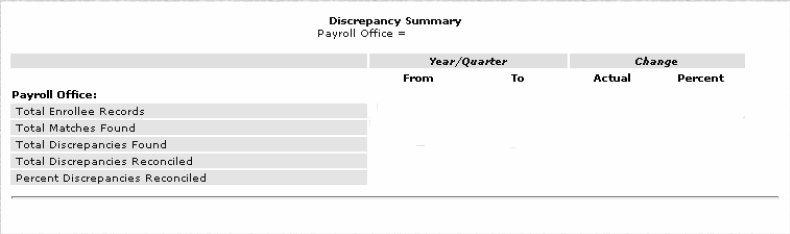
The data on the Discrepancy Summary report is categorized into the following fields:
- Close the report to return to the 2. Discrepancy Summary page.
See Also |