|
|
|
|
|


Adding a 2810 Record
The function allows users to add 2810 records.
To Add a 2810 Record:
- On the CLER Main Menu, select the tab. The Forms Main page is displayed.
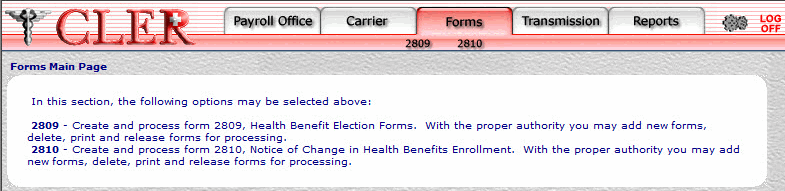
- Select the option on the Forms tab. The Form 2810 page is displayed.
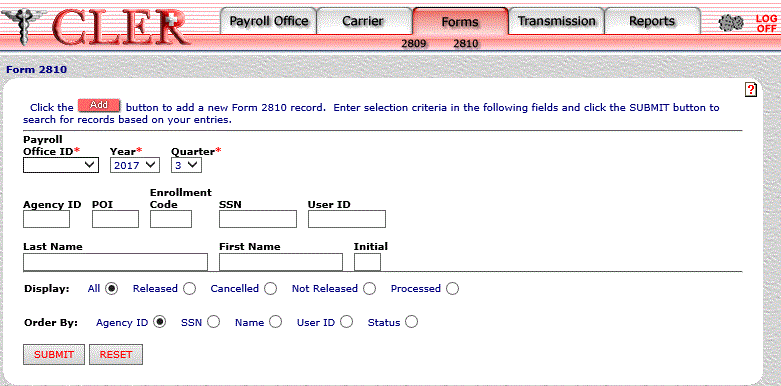
- Select the button on the Form 2810 page to display the Form 2810 Add Part A page.
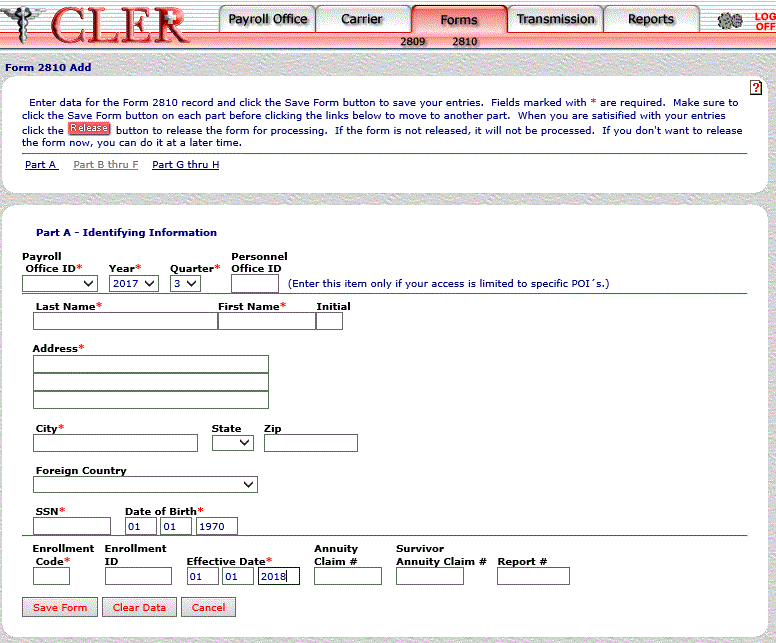
- Complete the following fields on the Form 2810 Add Part A page:
- Select the button. If no errors occur, a popup appears to confirm the record has been added.
OR
Select the button to clear the form and select the button to return to the previous page.
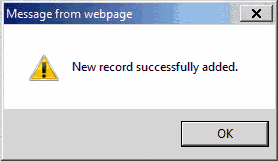
- Select the button to close the popup.
- Select on the Form 2810 Add page. The Part B thru F page is displayed.
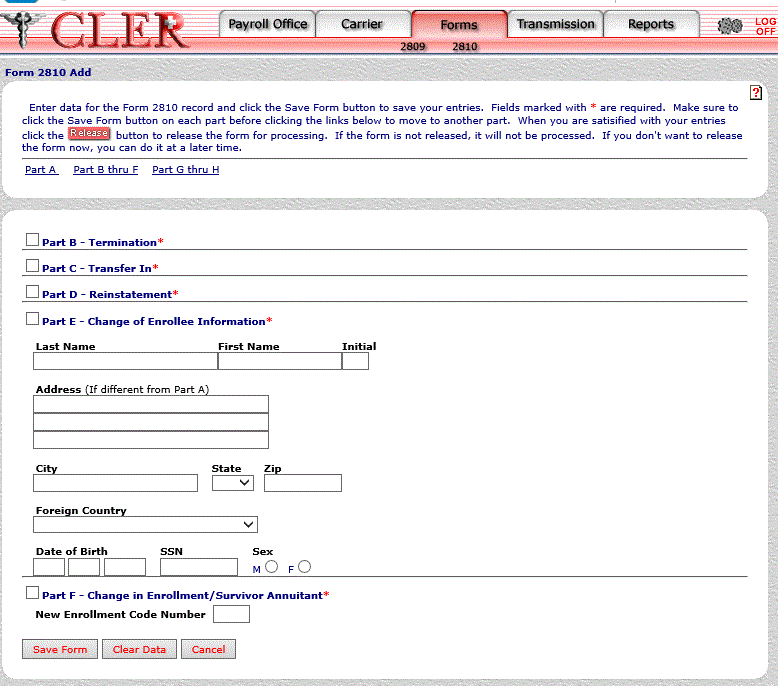
- Complete the following applicable fields on the Form 2810 Add Part B thru F page:
Part E - Change of Enrollee Information
- Select the button to save changes.
OR
Select the button to clear the form.
OR
Select the button to return to the previous page.
- Select on the Form 2810 Add page. The Part G thru H page is displayed.
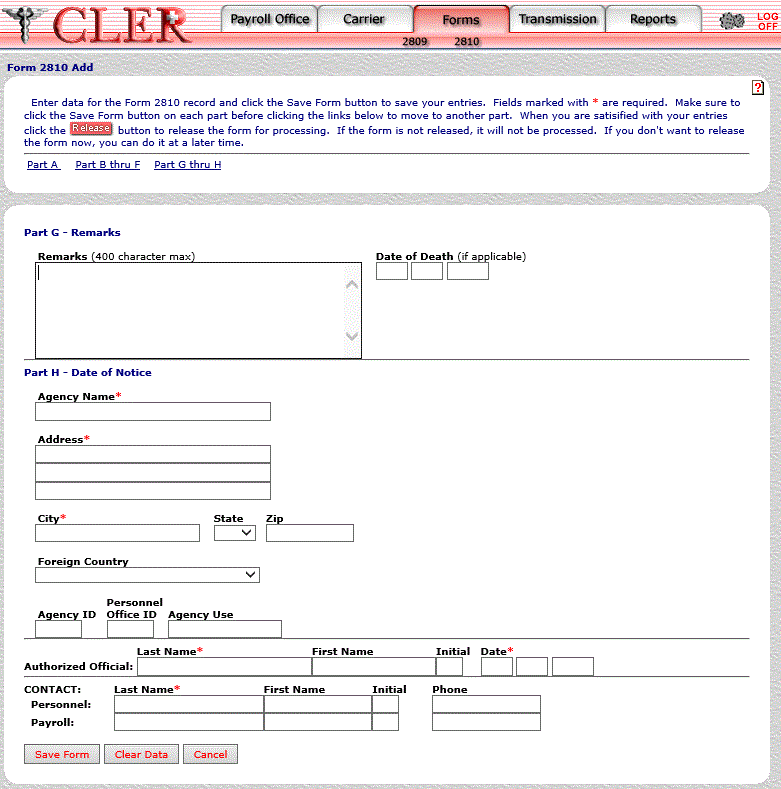
- Complete the following applicable fields on the Form 2810 Add Part G thru H page:
Authorized Official First Name
- Select the button. If no errors occur, a popup appears to confirm the record has been added.
OR
Select the button to clear the form. Select the button to return to previous form.
- Select the button to close the popup.
See Also |