EHRI & RSM Elements - 444
Document type 444, EHRI (Enterprise Human Resources Initiative) & RSM (Retirement Systems Modernization) Elements was established to allow multiple elements to enter and/or change at the same time. The program is used by OPM to build complete service history for all Federal employees by using historical Individual Retirements Records (IRRS) submitted to OPM along with historic service data being maintained by Agency in both paper and electronic format. Data is sent biweekly to OPM via the EHRI.
Entering EHRI and RSM Elements Actions
- To enter a 444 EHRI & RSM Elements action, select EPIC from the EPIC Web menu bar. The Document List page is displayed. If documents have been processed, the Document List page is displayed with a list of documents. If no documents have been processed, the Document List page is blank.
- Select New. The New Document Selection menu is displayed. Payroll documents are listed alphabetically.
- Select 444 EHRI& RSM Elements. The Key Data tab is displayed.
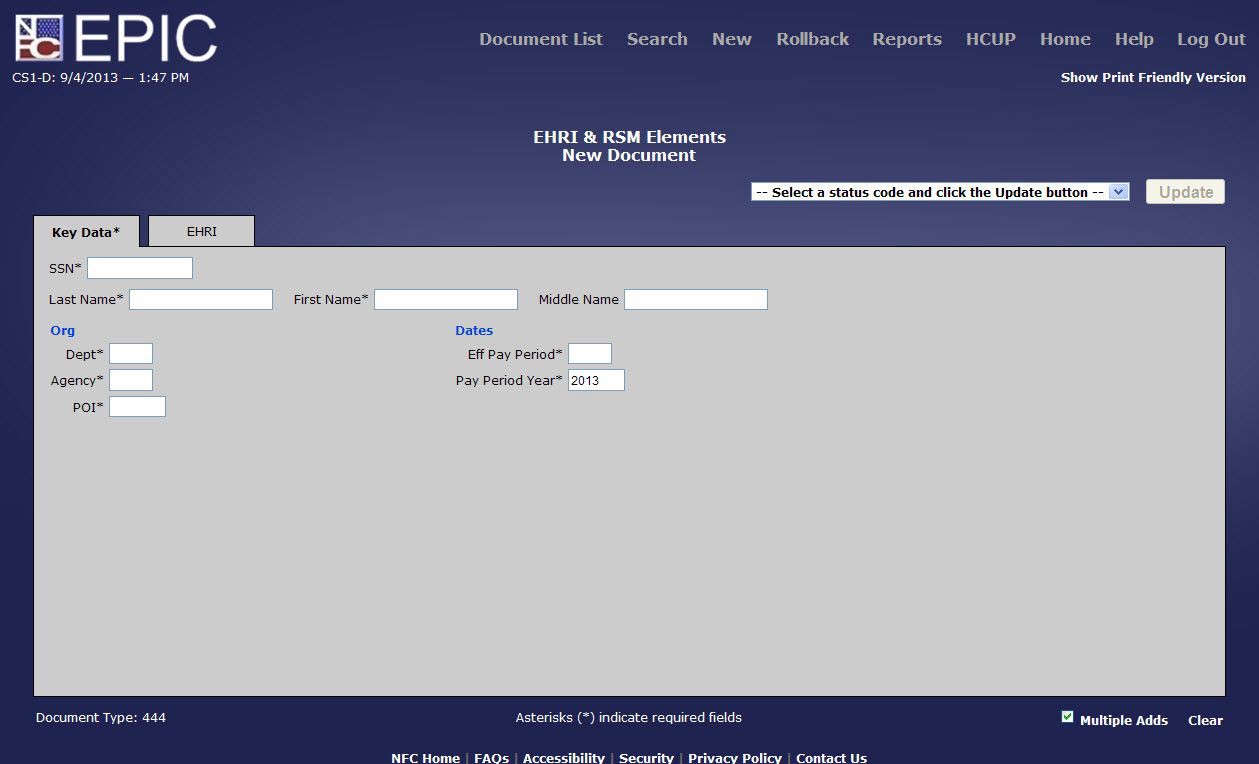
Figure 90: EHRI & RSM Elements Key Data* Tab
- Complete the fields on the Key Data tab.
Note: Required fields are marked with an asterisk. All other fields are optional.
Eff Pay Period Field Instruction
Pay Period Year Field Instruction
- Select the EHRI tab. The EHRI tab is displayed.

Figure 91: EHRI & RSM Elements EHRI Tab
- Complete the fields on the EHRI tab .
Citizenship Country Code Field Instruction
Svc Obligation Type Cd 1 Field Instruction
Svc Oblig End Date 1 Field Instruction
Svc Obligation Type Cd 2 Field Instruction
Svc Oblig End Date 2 Field Instruction
Svc Obligation Type Cd 3 Field Instruction
Svc Oblig End Date 3 Field Instruction
Svc Obligation Type Cd 4 Field Instruction
Svc Oblig End Date 4 Field Instruction
Mil Creditable Svc Yr. Field Instruction
Mil Creditable Svc Mo Field Instruction
Mil Creditable Svc Day Field Instruction
Appt Excluded From CSRS Indicator Field Instruction
Correspondence Region Field Instruction
Correspondence Country Code Field Instruction
Military Lost Days Field Instruction
Employee Work Email Field Instruction
Confirm Employee Work Email Field Instruction
FERS Indicator Field Instruction
FERS Election Date Field Instruction
Appt Excluded From FERS Indicator Field Instruction
FEGLI Assignment Indicator Field Instruction
FEGLI Post-Election Basic Insurance Amount Field Instruction
FEGLI Post-Election Basic Insurance Amount Field Instruction
- Select the applicable Status Input Code from the drop-down list on the top of the page. At this point, the following status input codes are available.
|
Code |
Description |
|---|---|
|
H (Hold until Release) |
To place a transaction on hold. If the status is not changed, the system will automatically delete the action after 60 days. |
|
I (Save as Incomplete) |
To save the transaction that is partially completed and held in EPIC without being edited. After completing the action, change the status code to R or H. If the status code is not changed, EPIC Web will automatically delete the action after 60 days. |
|
R (Release for Processing) |
To release the transaction from EPIC Web to be edited in PINE. |
- Select the Update button to save the entries.
Note: To add an additional address without returning to the menu, select the Multiple Adds link on the bottom right corner of the page. The page is refreshed for the next entry.