|
|
|
|
|


Reports
HR Administrators may run several reports.The Reports page lists reports that are available, and the My Saved and Scheduled Reports page displays a list of reports that have been scheduled for background execution.
Many reports may be run for a range of pay periods. For these reports, a maximum of 26 pay periods is allowed.
The default output display for most webTA reports is HTML displayed in the browser. However, some reports may be run in alternate formats.
The following file formats are available:
- Portable document format (PDF)
- Excel (Spreadsheet)
- Hypertext markup language (HTML)
- Comma separated values (CSV)
For a description of each report, select the report name link and then select .
To Save a Report in PDF:
- Select the link from the HR Administrator Main Menu page. The Reports page is displayed.
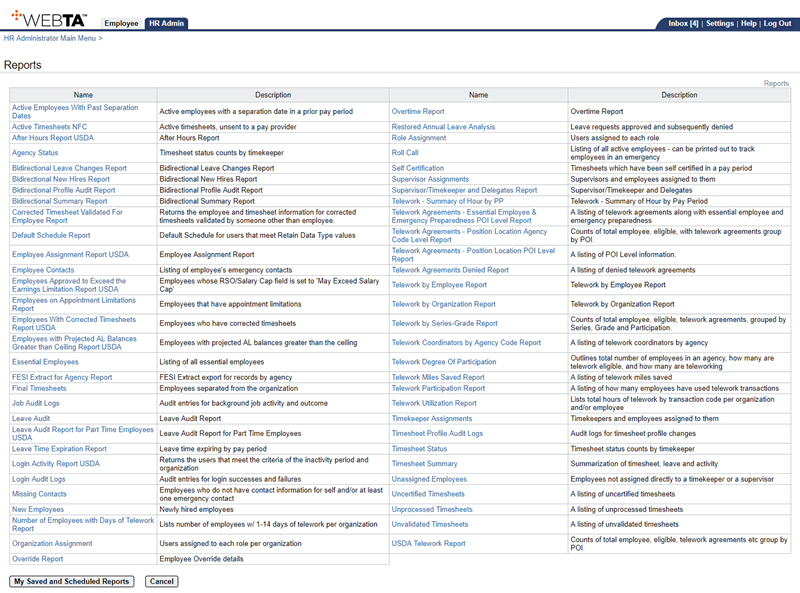
- Select the applicable report to be saved. The applicable report parameters page is displayed.
- Complete the report parameters page.
- Select the link. A popup appears asking whether to open or save the report.

At this point, the following options are available:
Step
Description
Select the button
Opens the report and displays it as a PDF file.
Select the button
Downloads and saves the report. Select the , , or button, as applicable.
Select the l button
Cancels the action and returns you to the applicable report.
Select
Logs you out of webTA.
To Save a Report in Excel:
- Select the link from the HR Administrator Main Menu page. The Reports page is displayed.
- Select the applicable report to be saved. The applicable report parameters page is displayed.
- Complete the report parameters page.
- Select the link. A popup appears asking whether to open or save the report.
At this point, the following options are available:
Step
Description
Select the button
Opens the report and displays it as an Excel spreadsheet.
Select the button
Downloads and saves the report. Select the , , or button, as applicable.
Select the l button
Cancels the action and returns you to the applicable report.
Select
Logs you out of webTA.
To Save a Report in HTML:
- Select the link from the HR Administrator Main Menu page. The Reports page is displayed.
‑
- Select the applicable report to be saved. The applicable report parameters page is displayed.
- Complete the report parameters page.
- Select the link. A popup appears asking whether to open or save the report.
At this point, the following options are available:
Step
Description
Select the button
Opens the report and displays it as an HTML.
Select the button
Downloads and saves the report. Select the , , or button, as applicable.
Select the l button
Cancels the action and returns you to the applicable report.
Select
Logs you out of webTA.
To Save a Report in CSV:
- Select the link from the HR Administrator Main Menu page. The Reports page is displayed.
- Select the applicable report to be saved. The applicable report parameters page is displayed.
- Complete the report parameters page.
- Select the link. A popup appears asking whether to open or save the report.
At this point, the following options are available:
Step
Description
Select the button
Opens the report and displays it as a CSV.
Select the button
Downloads and saves the report. Select the , , or button, as applicable.
Select the l button
Cancels the action and returns you to the applicable report.
Select
Logs you out of webTA.
In This Section |