|
|
|
|
|


Reverting a Leave Donation to Pending
In the event that an employee needs to adjust an approved leave donation before it is credited to a leave recipient's account, HR Administrators are able to revert the approved leave donations to a pending status.
To Revert an Approved Leave Donation to Pending:
- Select the link from the Leave Transfer Program section on the HR Administrator main menu page. The LTP Management page is displayed.
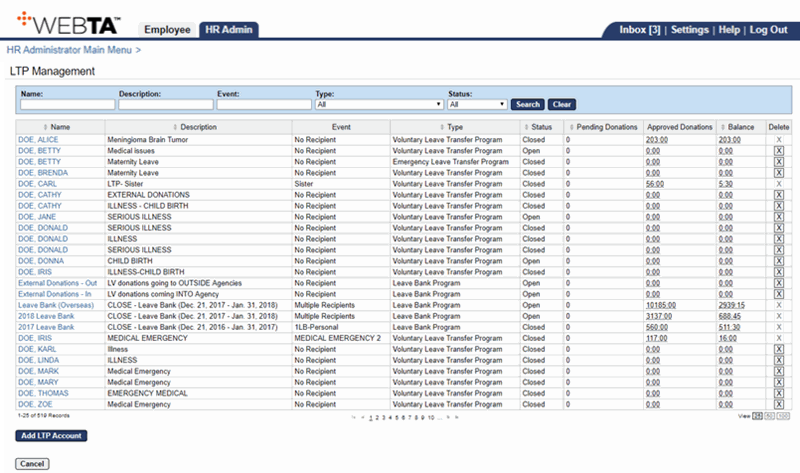
- Select the applicable leave transfer account.
OR
Enter the leave transfer account's name in the Name field and select the button.
The Edit LTP Account page is displayed.
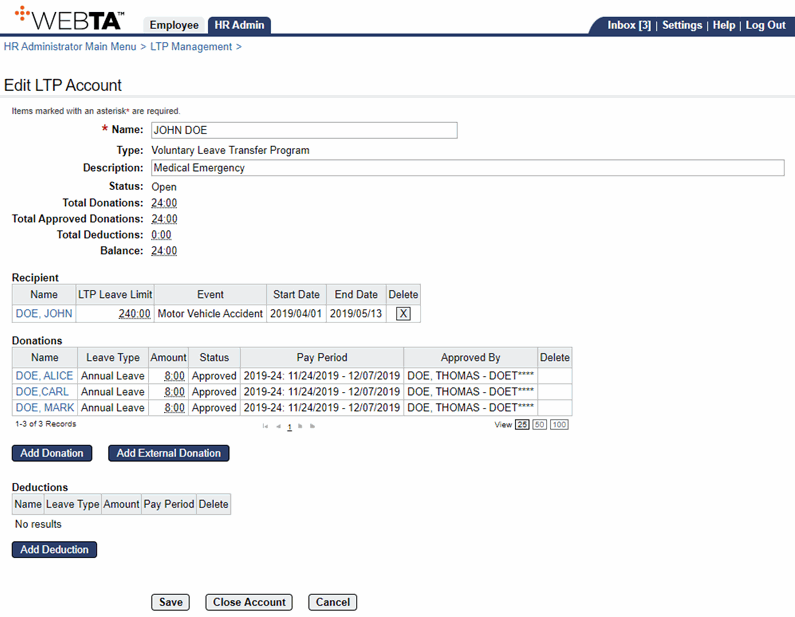
- Select the applicable name link of the leave donation to revert. The LTP Donation page is displayed.
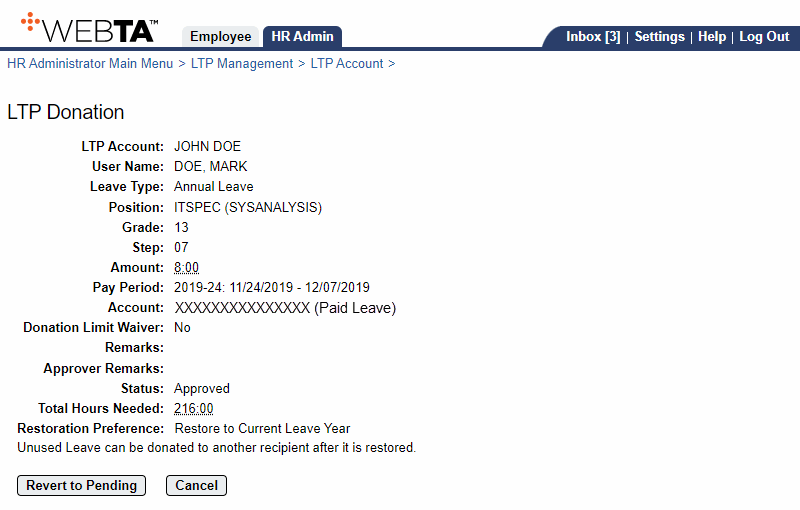
- Select the button. The Edit LTP Donation page with the message displayed.
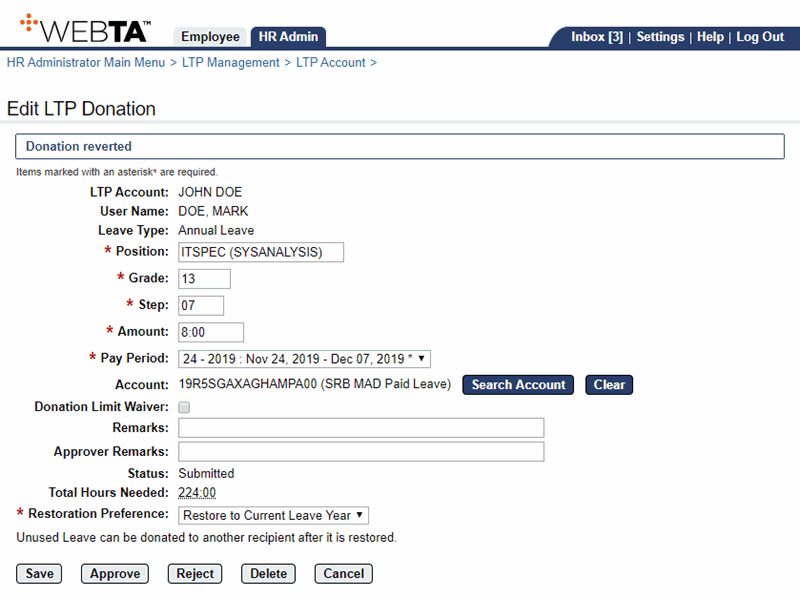
At this point, the following options are available:
Step
Description
Select the button
Saves the LTP donation. You remain on the page and the message is displayed.
Select the button
Approves the donation. You remain on the page and the message and the button are displayed.
Select the button
Rejects the LTP donation. You remain on the page and the message and the button are displayed.
Select the button
Deletes the LTP donation and returns you to the Edit LTP Donation page with the message displayed.
Select the button
Returns you to the Edit LTP Accounts page.
Select the tab
Returns you to the HR Administrator Main Menu page.
Select
Logs you out of webTA.
See Also |