Validating Timesheets
Timekeepers can validate timesheets for their assigned and delegated employees in the event that they are unable to do so. Timesheets may be validated from a list of employees or directly from the timesheet and may be validated individually or as a group.
When validating, any errors on the timesheet will be displayed and must be resolved before the timesheet can be validated. Any warnings displayed on the timesheet should be resolved; however, a timesheet can be validated with warnings.
Note: Master timekeepers are allowed to override validation errors, but these errors still may not pass the TIME edits at NFC.
- To validate while viewing the timesheet, select the Select Timesheets link from the Employees menu on the Timekeeper Main Menu page. The Select Timesheets page is displayed.
Note: If performing this function as a delegate, select the filter icon to expand the filter options. Select the applicable Timekeeper from the Delegates For drop-down list. Select the Apply button to save the filter options. The Select Timesheets page for the selected timekeeper is displayed.

Figure 86: Select Timesheets Page
- Select the checkbox for the applicable timesheet to validate.
- Select the Timesheet link from the Actions drop down. The Timesheet page for the selected employee is displayed.
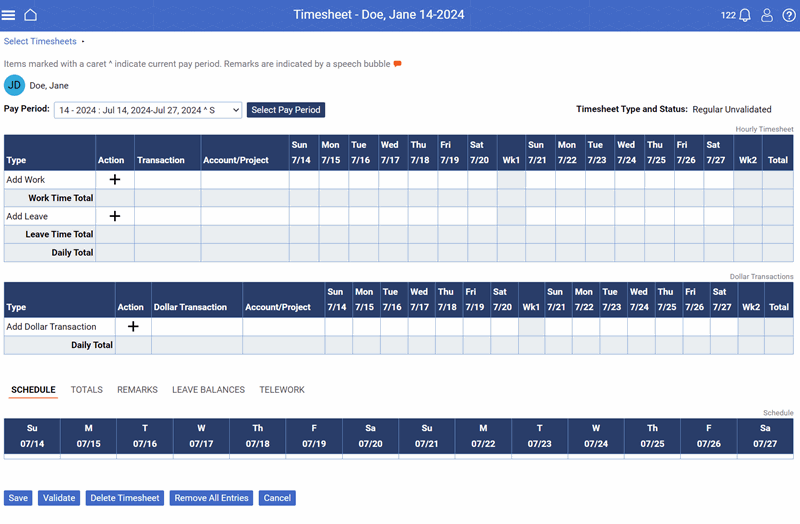
Figure 87: Timesheet Page
- Select the Validate button. The Timesheet page now has the status marked Validated and the message Timesheet validated successfully is displayed.
Note: If there are any errors on your timesheet, they will be displayed. You must resolve all errors before a timesheet may be validated.
Note: If there are any warnings on your timesheet, they will be displayed. You should resolve warnings; however, a timesheet may still be validated with warnings.
- Select the Cancel button to return to the Select Timesheets page.
Validating Multiple Timesheets
- Select the Select Timesheets link from the Employees menu on the Timekeeper Main Menu page. The Select Timesheets page is displayed.
Note: If performing this function as a delegate, select the filter icon to expand the filter options. Select the applicable Timekeeper from the Delegates For drop-down list. Select the Apply button to save the filter options. The Select Timesheets page for the selected timekeeper is displayed.
Figure 88: Select Timesheets Page
- Select the applicable timesheets to validate.
- Select the Validate Selected link from the Timesheets Actions drop-down. The Timesheet Validation page is displayed indicating that this is the first timesheet of the number of timesheets selected.
- Select the Validate button. If no errors are present, the Timesheet Validation page now has the status marked Validated and the message Timesheet validated successfully displayed.
- Select the arrow to move to the next timesheet. The next Timesheet Validation page is displayed.
- Select the Validate button. If there are no errors, the Timesheet Validation page now has the status marked Validated and the message Timesheet validated successfully displayed.
- Continue these steps through all selected timesheets.
- Select the Cancel button to return to the Select Timesheets page.