Logging In with Multi-Factor Authentication
Multi-Factor Authentication (MFA) provides an additional layer of security when users log in to GovTA using a user ID and password. In addition to entering a user ID and password, employees who register with MFA must provide additional authentication information in order to log in. Employees must register for MFA via an Authenticator Application.
Note: If registering with MFA, the user would first enter the user ID and password. Upon entering the GovTA application, the user would then select the Employee Profile to complete the MFA registration process.
MFA Authentication Frequency establishes how often MFA users must obtain the second factor of authentication. User roles are assigned to low, medium or high security levels with default values that specify the frequency of obtaining the second factor of authentication. The security levels, roles, and the amounts of time that the second factor of authentication is valid are listed below.
- Low
- Employee
- 7 days
- Medium
- COP Administrator
- ECM Administrator
- Project Manager
- Supervisor
- Timekeeper
- Telework Coordinator
- Telework Managing Officer
- Every 1 day
- High
- Administrator
- HR Administrator
- Master Supervisor
- Master Timekeeper
- Every 4 hours
After a user logs in to GovTA, with a user ID and password the user can set up MFA.
To Log In Using a User ID and Password:
- Connect to the NFC home page (https://www.nfc.usda.gov).
- Select the Applications link. The Application Launchpad is displayed.
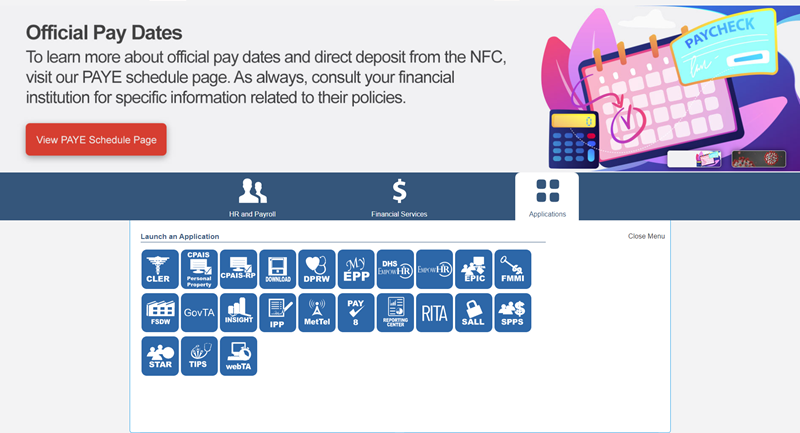
Figure 5: Applications Launchpad Page
- Select the GovTA icon. The webTA/GovTA: Time and Attendance Applications page is displayed.

Figure 6: webTA/GovTA: Time and Attendance Applications Page
- Select the applicable Sign into GovTA button.
- Complete the following fields:
Note: All fields with an asterisk are required fields.
User ID Field Instruction - GovTA
Password Field Instruction - GovTA
- Select the Log In button. The GovTA Employee Main Menu page is displayed.

Figure 7: GovTA Employee Main Menu Page
Note: If the user is registering for MFA, continue with the steps below.
- Select the Employee Profile icon. The Employee Profile for page is displayed.

Figure 8: Employee Profile for Page
- Select the Security tab. The Security for page is displayed.
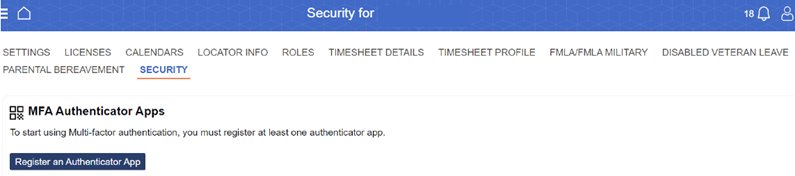
Figure 9: Security for Page
- Select the Register an Authenticator App button. The Register an Authenticator App page is displayed.
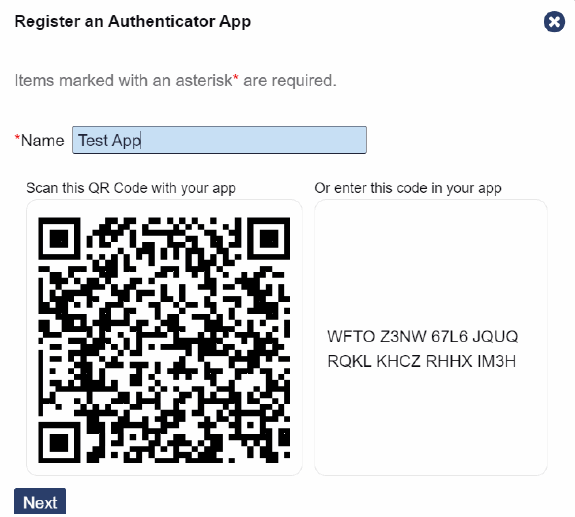
Figure 10: Register an Authenticator App Page
- Select the Next button. The Save Your Recovery Code! page is displayed.
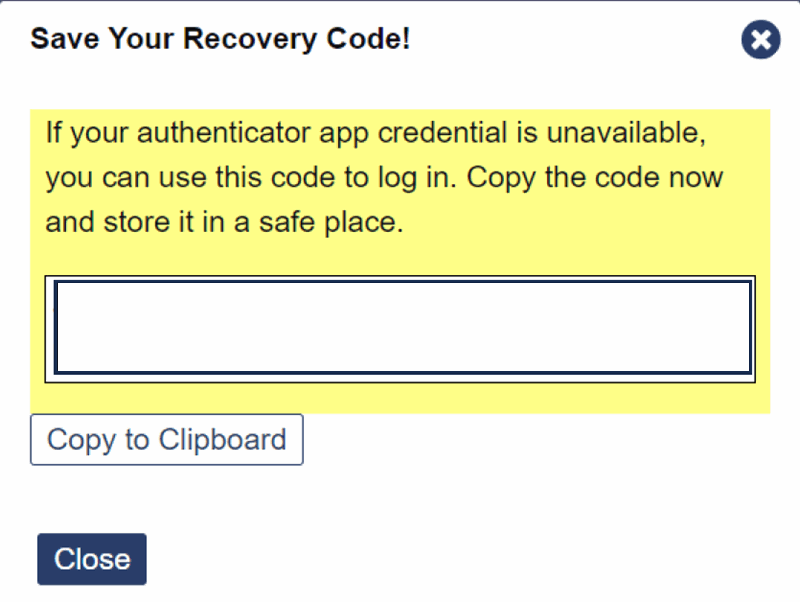
Figure 11: Save Your Recovery Code! Page
- Select the Close button. The message Successfully registered is displayed.
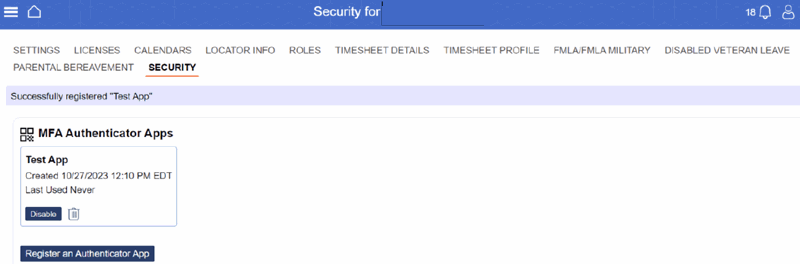
Figure 12: Successfully registered Page
- Enter the code from the Authenticator App. The user is now authenticated into the application.
At the next login using the user ID and password, the user must enter the code from the Authenticator App.
 Popup.gif)
Figure 13: MFA (6-digit code) Page