Accounting Favorites
The Accounting Favorites option allows users to select their most commonly used accounting codes, add their own description, and add it to a list of favorites to use when the default schedule is updated or pay period schedule is entered.
Each Agency uses its unique accounting codes and formats. The accounting data is validated when the accounting table is updated. The accounting data entered on the T&A is edited for validity and field length. Each employee’s record maintained by NFC contains the appropriation and accounting information used to disburse and charge the employee’s pay and related expenditures to the proper accounting records.
The accounting codes assigned to the employee’s organization are usually set up by an administrator assigned to that organization. The accounting codes are displayed on the Accounting Favorites option.
Adding Accounting Favorites
The Accounting Favorites option allows users to select their most commonly used accounting codes and add to a list of favorites to use when entering T&A data.
- To add accounting favorites, select the Accounting Favorites component. The Accounting Favorites page is displayed.
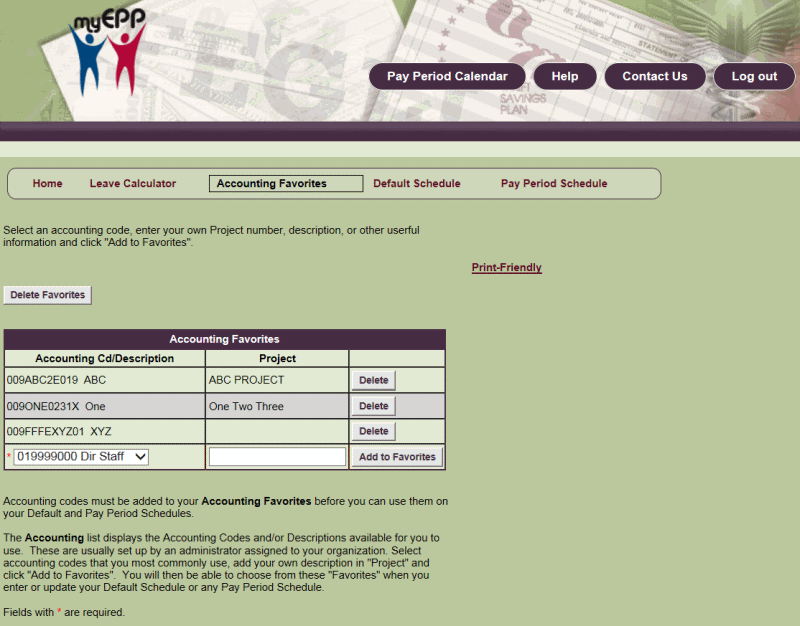
Figure 141: Accounting Favorites Page
- Complete the fields as follows:
Accounting Cd/Description
Project
- Select Add to Favorites to add the selected accounting code to the favorites list.
OR
Select Delete to delete the selected accounting code from the favorites list.
Deleting Accounting Favorites
The Accounting Favorites option allows users to simultaneously delete their most commonly used accounting codes stored in their list of favorites.
- To delete accounting favorites, select the Accounting Favorites component. The Accounting Favorites page is displayed.
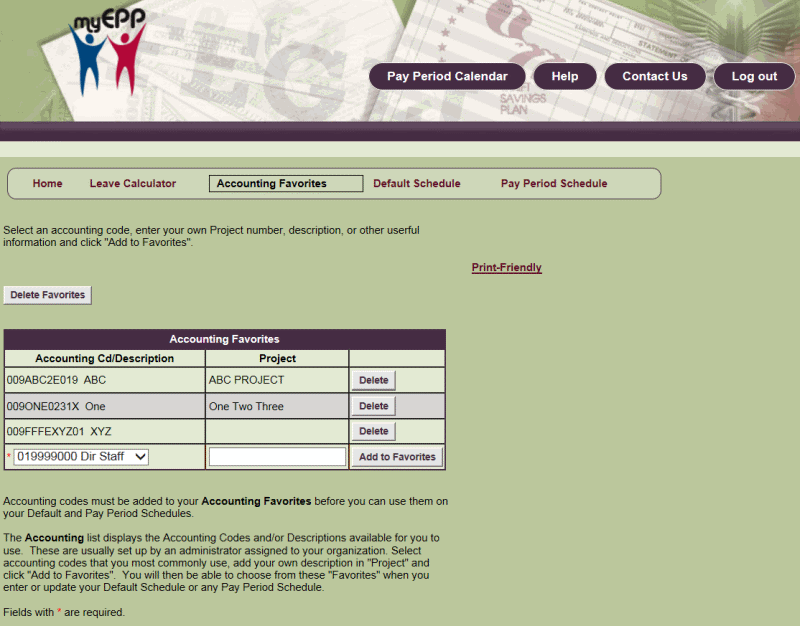
Figure 142: Accounting Favorites Page
- Select Delete Favorites to delete all of the accounting codes stored in the favorites list. A confirmation is displayed on the page.
- Select Delete to delete the entire favorites list.
OR
Select Cancel to cancel the action and return to the Accounting Favorites page.