Performance Appraisals
Performance appraisals are used to evaluate an employee’s performance. Form AD-435, Performance Appraisal, is generated in advance of the rating period for all employees except SES employees and those employees for whom their Agencies have made other arrangements. This advanced notification is sent to the Agency personnel office for evaluation of employees who are nearing completion of the Agency established rating period.
Performance appraisals are used for the following reasons:
- To evaluate employee’s performance.
- To recognize and reward quality work performance.
- To develop those employees that are not performing proficiently by providing training and counseling.
A maximum of five performance appraisal records (IRIS Program IR313, SES Performance Data) are stored in the database for SES employees. Four performance appraisals records are stored for all other employees. BEAR must process for the current pay period before another change to the same performance appraisal rating period can be entered.
The following IRIS Programs display performance appraisal data for users with access to sensitive data:
- IRIS Program IR304, Performance Evaluation Data
- IRIS Program IR305, PERHIS Performance Evaluation Data
- IRIS Program IR313, SES Performance Data
- IRIS Program IR314, PERHIS SES Performance Data
Remote Forms Queuing System (RFQS) provides the control listing of performance evaluation forms prepared for full time and part time employees. This report should be verified by the Agency personnel office for accuracy. If the report is not accurate, an employee may be reported in error or not reported at the proper time.
CULPRPT includes several reports that pertain to performance appraisal processing. For exhibits of all CULPRPT reports, see the CULPRPT procedure manual. Several reports and correspondence that pertain to performance appraisal processing are sent to Agency locations.
Entering 075 Performance Appraisal Actions
- To enter a 075 Performance Appraisal, select EPIC from the EPIC Web menu bar. The Document List page is displayed. If documents have been processed, the Document List page is displayed with a list of documents to choose from. If no documents have been processed, the Document List page is blank.
- Select New. The New Document Selection menu is displayed. Payroll documents are listed alphabetically.
- Select the Performance Appraisals folder. The expanded Performance Appraisals folder is displayed.
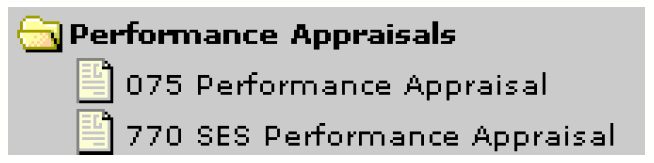
Figure 70: Performance Appraisals Folder
- Select 075 Performance Appraisal The Key Data tab is displayed.
.jpeg)
Figure 71: Performance Appraisal Key Data* Tab
- Complete the fields on the Key Data tab.
Note: Required fields are marked with an asterisk. All other fields are optional.
Eff Pay Period Field Instruction
Pay Period Year Field Instruction
Effective Date Field Instruction
- Select the Appraisal tab. The Performance Appraisal tab is displayed.
.jpeg)
Figure 72: Performance Appraisal Appraisal* Tab
- Complete the fields on the Appraisal tab.
- Select the Other tab. The Other tab is displayed.
.jpeg)
Figure 73: Performance Appraisal Other* Tab
- Complete the fields on the Other tab.
Summary Rating Score Field Instruction
- Select the applicable Status Input Code from the drop-down list on the top of the page. At this point the following status input codes are available:
|
Code |
Description |
|---|---|
|
H (Hold until Release) |
To place a transaction on hold. If the status is not changed, the system will automatically delete the action after 60 days. |
|
I (Save as Incomplete) |
To save the transaction that is partially completed and help in EPIC Web without being edited. If the status is not changed, the system will automatically delete the action after 60 days. |
|
R (Release for Processing) |
To release the transaction from EPIC Web to be edited in PINE. |
- Select the Update button to save the entries.
Note: To delete a performance appraisal, the processor should enter the original date in the To Date field and 0(all zeros) in the From Date field one pay period and correctly resubmit the performance appraisal the following pay period.
Note: To add or delete/change another transaction without returning to the menu, select the Multiple Adds link. The page is refreshed for the next transaction.