Job Classification Request
The Job Classification component allows the user to request the reclassification of an existing position. An employee can request their position to be reclassified or a manager can initiate a reclassification of a subordinate’s position. This section provides the steps to request a job reclassification.
- To add or update an existing job classification request, select the Employee Self Service menu group.
- Select the Tasks menu.
- Select the Job Classification Request component. The Classification Request page - Find an Existing Value is displayed.
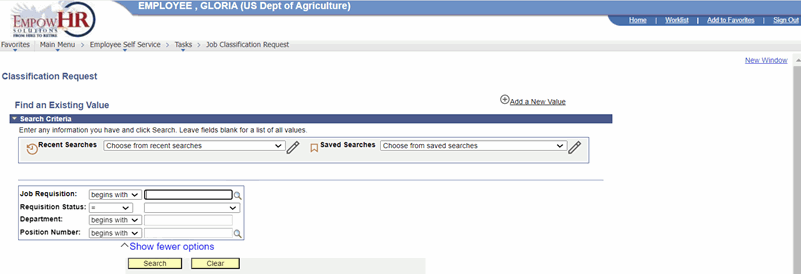 Figure 2: Classification Request - Find an Existing Value
- Complete the fields as follows:
|
Field |
Description/Instruction |
|---|---|
|
Job Requisition |
Enter the job requisition number or select data by selecting the search icon. |
|
Requisition Status |
Enter the applicable status or select data by selecting the search icon. |
|
Department |
Enter the Department code or select data by selecting the down arrow. |
|
Position Number |
Enter the position number or select data by selecting the search icon. |
- Select Search. The Job Classification Request page is displayed.
OR
Select Clear to clear the entry.
OR
Select Add a New Value. The Classification Request page - Add a New Value is displayed.

Figure 3: Classification Request - Add a New Value
- Complete the field as follows:
|
Field |
Description/Instruction |
|---|---|
|
Job Requisition |
Enter the number of the job requisition to be added. |
- Select the Add button. The Job Classification Request page is displayed.

Figure 4: Job Classification Page
- Complete the fields as follows:
Note: Some of the fields on this page are populated from other pages and cannot be modified.
|
Field |
Description/Instruction |
|
Job Requisition |
Populated. |
|
Date Entered |
Populated with the system date or the current date and cannot be changed. |
|
Req Status |
Populated. |
|
Select a Classification Action |
Defaults to Update and cannot be changed. |
|
New Position Classification |
Description/Instruction |
|
New Position on Approved Org Chart? |
Select the applicable value from the drop-down list. |
|
Job Code |
Populated based on the position number selected. |
|
No ASPD? |
Check this box if the job being classified is not an Agency Standard Position Description (ASPD). |
|
Create an Additional Identical |
Check this box to create an additional job classification identical to the one currently being created. |
|
Department |
Enter the applicable Department code or search for a code by selecting the search icon. |
|
Division |
Populated |
|
Branch |
Populated |
|
Section |
Populated |
|
Location Code |
Enter the applicable location code or search for a code by selecting the search icon. The literal is displayed to the right of the field. |
|
Current Duties |
Enter the current duties of the job being classified. |
|
Proposed Changes |
Enter the proposed changes for the position being classified. |
|
Select one or more reasons for changes to ASPD |
Instruction |
|
Reason for Change |
Select the applicable reason for changing the job to ASPD from the drop-down list. |

Figure 5: Job Classification - Additional Identical
|
Field |
Description/Instruction |
|
Additional Identical |
Description/Instruction |
|
Select Position to Copy |
Enter the position number of the position to copy. The name of the position is displayed to the right of the number. |
|
Department |
Populated with the Department code. |
|
Pay Plan/Occ Series/Grade |
Populated with the pay plan, occupational series, and grade. |
|
Job Code |
Populated with the job code. |
|
Current Duties |
Populated with the current duties of the position. |

Figure 6: Job Classification Request Page - Update Re-Describe Classification
|
Field |
Description/Instruction |
|---|---|
|
Update/Re-Describe Classification |
Description/Instruction |
|
Empl ID |
Populated with the user's employee identification (Empl ID) number. The name is displayed to the right of the number. |
|
Position Number |
Populated with the user's position number. The position name is displayed to the right of the number. |
|
Department |
Populated with the Department code. |
|
Last Promotion Date |
Populated with the last promotion date, if applicable. |
|
Position Audit Decision Date |
Populated with the audit decision, if applicable. |
|
Pay Plan/Occ Series/Grade |
Populated with the pay plan, occupational series, and grade. |
|
Position Entry Date |
Populated with the date that the employee entered the position. |
|
Job Code |
Populated with the job code of the job being classified. |
|
Proposed Title |
Enter the proposed title of the job. |
|
Current Duties |
Enter the current duties of the job. |
|
Proposed Changes |
Enter the proposed changes to the job duties. |
 Figure 7: Job Classification Request Page - Update Re-Describe Classification
|
Field |
Description/Instruction |
|---|---|
|
Recertify Classification |
Description/Instruction |
|
Position Number |
Populated with the user's position number. The position name is displayed to the right of the number. |
|
Department |
Populated with the Department code. |
|
Pay Plan/Occ Series/Grade |
Populated with the pay plan, occupational series, and grade. |
|
Job Code |
Populated with the job code of the job being classified. |
|
Duties |
Enter the duties of the job. |
|
Proposed Changes |
Enter the proposed changes to the job duties. |
 Figure 8: Job Classification Request Page - Justification
|
Field |
Description/Instruction |
|---|---|
|
Justification |
Enter the justification for the change. |
|
Supervisory Certification |
Check this box after the request has been certified by the supervisor. |
-
Select the Submit button. The request is entered into the workflow for approval and processing. Your Position Request Has Been Entered Into Workflow (99999999,999) is displayed.
- Select OK. The Job Requisition and the Requisition Status have changed. The approver (the Manager of the request’s Initiator) will receive an email, and the job requisition will become a workflow item on their Worklist.
Note: You can select Print PD to print a copy of the job description.