Entering Financial Allotments
The following are guidelines for processing financial allotments:
- The saving/checking account must be in the name of the employee.
- The allotment must be a fixed, whole dollar amount that will be deducted from the employee’s salary. No minimum amount is prescribed; however, the whole dollar amount restriction automatically precludes any allotment for less than $1.00.
- The maximum financial allotment in effect at one time is two. If the employee has two allotments, each may be directed to a different financial organization. A separate transaction must be entered for each financial allotment.
- To enter financial allotments, select the Payroll Documents menu group.
- Select the Financial Allotment/Health Sav component. The Financial Allotment/Health Sav page - Find an Existing Value is displayed. The information on this page allows the user to locate an existing employee to enter or change a financial allotment.
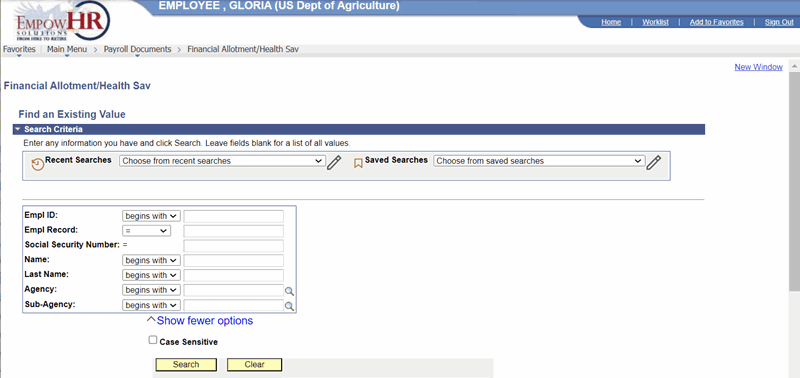
Figure 20: Financial Allotment/Health Sav - Find an Existing Value
- Enter the search criteria.
- Select the Search button. The Financial Allotment/Health Savings Account page is displayed.
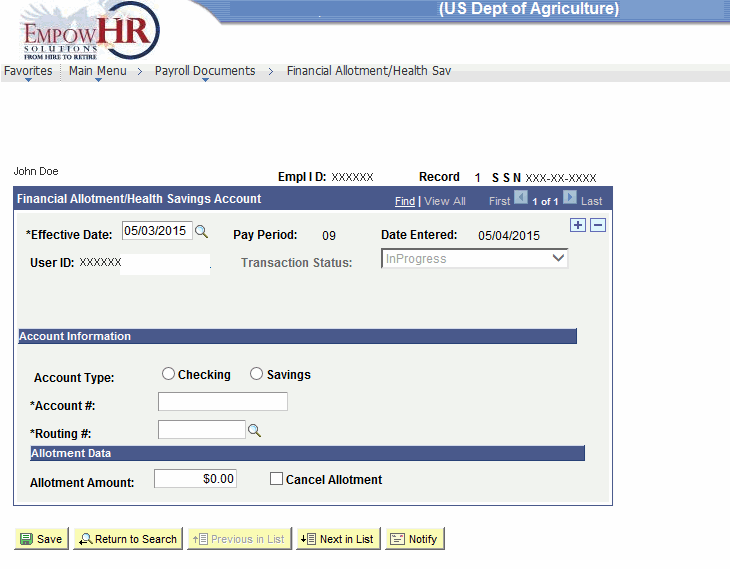
Figure 21: Financial Allotment/Health Sav Page
- Complete the fields as follows:
|
Field |
Description/Instruction |
|---|---|
|
Name |
Populated from the Empl ID. |
|
Empl ID |
Populated from the search criteria entered. The employee name is displayed based on the Empl ID. |
|
Record |
Displays the number of records for the employee. |
|
SSN |
Populated from the search criteria entered. The employee SSN is displayed based on the Empl ID. |
- Complete the Financial Allotments/Health Savings Account fields as follows:
|
Field |
Description/Instruction |
|---|---|
|
Effective Date |
Required field. Enter a date or select a date from the calendar icon. This is the date on which a table record becomes effective; the date that an action begins. This date also determines when to view or change information. |
|
Pay Period |
Populated with the pay period that corresponds to the effective date. |
|
Date Entered |
Populated with the date the transaction is entered. |
|
User ID |
Displays the system identifier and name of the individual who generates the transaction. |
|
Transaction Status |
Defaults to In Progress and reflects that status of the transaction. The transaction status will change when the transaction is saved, in suspense, or resent to PPS. |
- Complete the Account Information fields as follows:
|
Field |
Instruction |
|---|---|
|
Account Type |
Select the applicable account type for the financial allotment. Valid values are Checking and Savings. |
|
Account # |
Required field. Enter the account number of the savings or checking account. |
|
Routing # |
Required field. Enter the financial organization’s routing number or select data by selecting the search icon. The first two positions must be 01–12, 21–32, or 90–91. |
- Complete the Allotment Data fields as follows:
|
Field |
Instruction |
|---|---|
|
Allotment Amount |
Enter the amount of the allotment. The allotment must be a fixed, whole dollar amount that will be deducted from each salary check. No minimum amount is prescribed; however, the whole dollar amount restriction automatically precludes any allotment for less than $1.00. |
|
Cancel Allotment |
Check this box if the previously established allotment should be canceled. |
At this point, the following options are available:
|
Step |
Description |
|
Select the Save button |
Saves the new data entered. |
|
Select the Return to Search button |
Returns the user to the applicable page to search for another record. |
|
Select the Previous in List button |
Returns to the previous person in the list. |
|
Select the Next in List button |
Advances to the next person in the list. |
|
Select the Notify button |
Notifies the next individual in the workflow. |