Classification Standards USF
Note: This option is for NFC use only.
This section provides instructions on adding/updating organizational position titles.
To Add or Modify a Classification Standard USF:
- Select the Position Management from the menu group.
- Select the Classification Standards USF menu. The Classification Standards USF page - Find an Existing Value is displayed. The information on this page will allow the user to locate existing data.
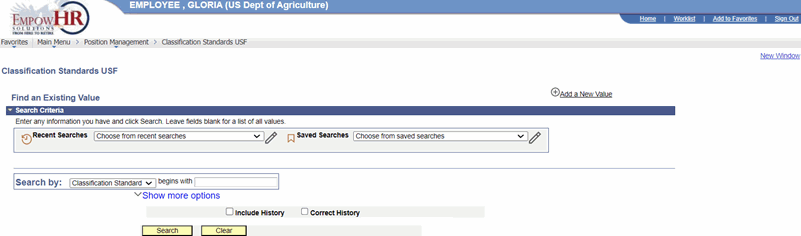
Figure 36: Classification Standards USF Page - Find an Existing Value
- Enter the search criteria.
- Select the Search button. The Classification Standard Table tab is displayed.
OR
Select the Add a New Value link. The Classification Standards USF page - Add a New Value link is displayed. The information on this page will allow the user to add new data.
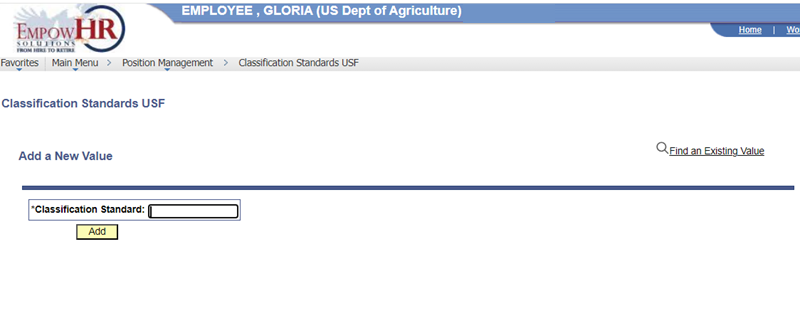
Figure 37: Classification Standards USF Page - Add a New Value
- Enter the new criteria.
- Select the Add button. The Classification Standards USF page - Classification Standard Table tab is displayed.
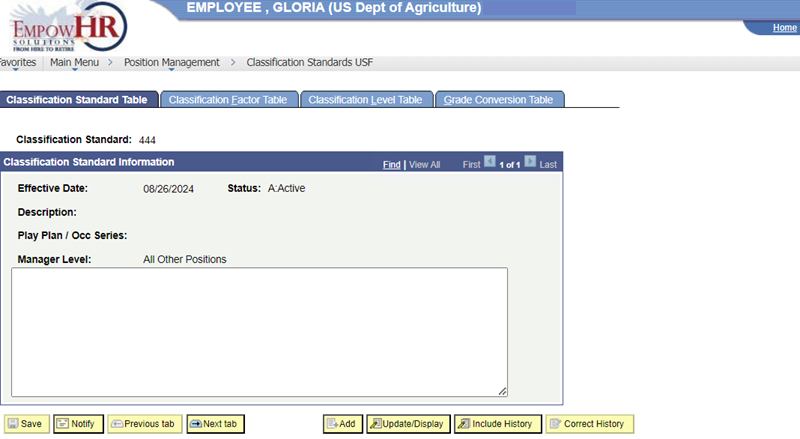
Figure 38: Classification Standards USF Page - Classification Standard Table Tab
- Complete the fields as follows:
|
Field |
Description/Instruction |
|---|---|
|
Classification Standard |
Populated based upon the search criteria entered. |
- Complete the Classification Standard Information section as follows:
|
Field |
Description/Instruction |
|---|---|
|
Effective Date |
Required field. Defaults to the current date. Enter the applicable effective date or select a date from the calendar icon button. This is the date the action begins. This date also determines when the user can view and change the information. |
|
Status |
Required field. Defaults to Active. Change by selecting data from the drop-down list. The valid values are Active, Freeze, and Inactive. |
|
Description |
Required field. Enter the description of the standard. |
|
Pay Plan/*Occ Series |
Required field. Enter the applicable pay plan and occupational series to be classified. |
|
Manager Level |
Required field. Enter the applicable manager level or select data from the drop-down list. Note: Modifying the manager level will require a PAR transaction. |
|
Remarks |
Enter the applicable remarks. |
- Select the Classification Standards USF page - Classification Factor Table tab. The Classification Standards USF page - Classification Factor Table tab is displayed.
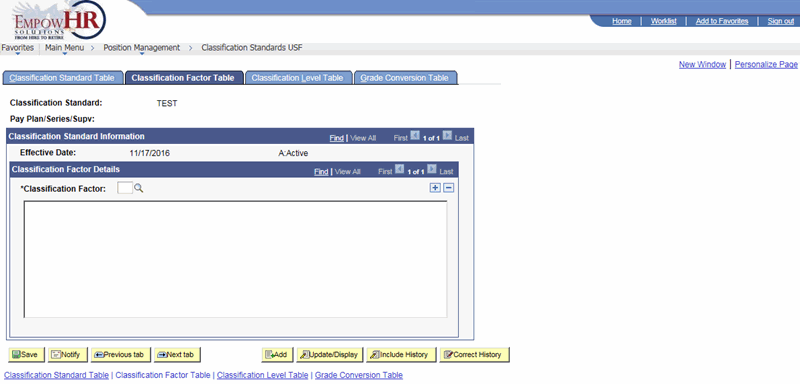
Figure 39: Classification Standards USF Page - Classification Factor Table Tab
- Complete the fields as follows:
|
Field |
Description/Instruction |
|---|---|
|
Classification Standard |
Populated with the search criteria entered. |
|
Pay Plan/Series/Supv |
Is not used. |
- Complete the fields in the Classification Standard Information section as follows:
|
Field |
Description/Instruction |
|---|---|
|
Effective Date |
Populated from the Classification Standard Table page. |
- Complete the fields in the Classification Factor Details section as follows:
|
Field |
Description/Instruction |
|---|---|
|
Classification Factor |
Required field. Enter the applicable classification factor or search data by selecting the search icon button. |
- Select Classification Standards USF page - Classification Level Table tab. The Classification Standards USF page - Classification Level Table tab is displayed.
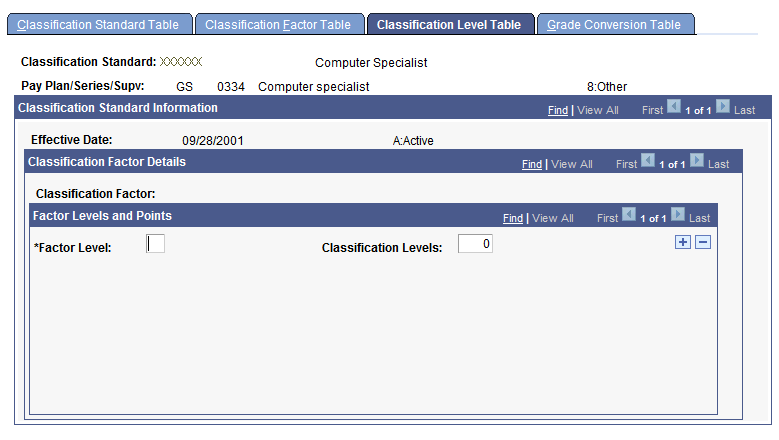
Figure 40: Classification Standards USF Page - Classification Level Table Tab
- Complete the fields as follows:
|
Field |
Description/Instruction |
|---|---|
|
Classification Standard |
Populated from the Classification Standard Table page. |
|
Pay Plan/Series/Supv |
Is not used. |
- Complete the fields in the Classification Standard Information section as follows:
|
Field |
Description/Instruction |
|---|---|
|
Effective Date |
Populated from the Classification Standard Table page. |
- Complete the fields in the Classification Factor Details section as follows:
|
Field |
Description/Instruction |
|---|---|
|
Classification Factor |
Populated from the Classification Factor Table page. |
- Complete the fields in the Factor Level and Points section as follows:
|
Field |
Description/Instruction |
|---|---|
|
*Factor Level |
Required field. Enter a classification factor level for each classification associated with the classification standard. |
|
Classification Levels |
Enter the applicable classification level for the standard. |
- Select the Grade Conversion Table tab. The Classification Standard page - Grade Conversion Table tab is displayed.
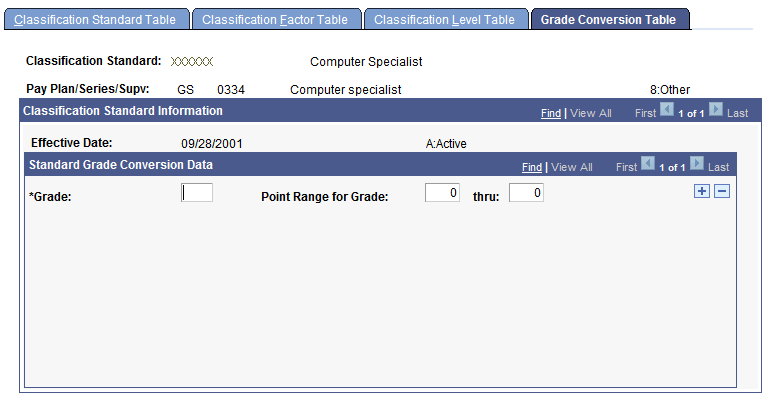
Figure 41: Classification Standards USF Page - Grade Conversion Table Tab
- Complete the fields as follows:
|
Field |
Description/Instruction |
|---|---|
|
Classification Standard |
Populated from the Classification Standard Table. |
|
Pay Plan/Series/Supv |
Is not used. |
- Complete the fields in the Classification Standard Information section as follows:
|
Field |
Description/Instruction |
|---|---|
|
Effective Date |
Populated from the Classification Standard Table. |
|
Grade |
Required field. Enter the applicable grade to be converted. |
|
Point Range for Grade |
Enter the point range from and through for the grade. The points are associated with the classification standard. |
- Select the Save button. After completing all fields, the following options are available:
|
Button |
Description |
|---|---|
|
Return to Search |
Returns you to Search where you can locate another classification standard. |
|
Previous in List |
Views the previous classification standard. |
|
Notify |
Notifies the next individual in the workflow. |
|
Add |
Adds an additional classification standard. |
|
Update/Display |
Updates the page. |
|
Include History |
Includes historical actions. |
|
Correct History |
Corrects historical actions. |