Modifying a Person
The Modify a Person component allows the user to modify information about a person.
- To modify a person on the EmpowHR Main Menu page, select the Workforce Administration menu group.
- Select the Personal Information menu.
- Select the Biographical menu item.
- Select the Modify a Person component. The Personal Data page - Find an Existing Value is displayed.
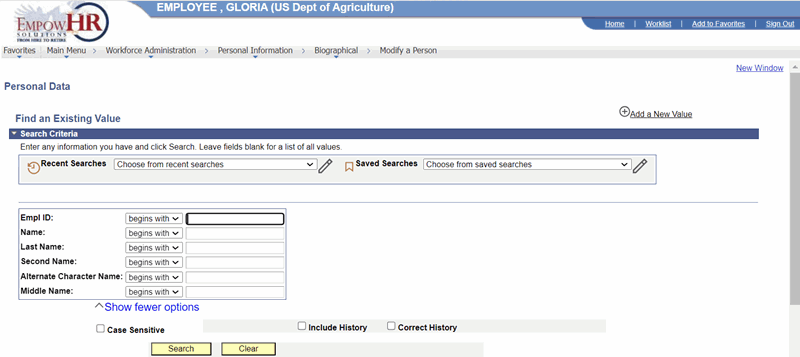
Figure 14: Personal Data Page - Find an Existing Value
- Complete the fields as follows:
|
Field |
Description/Instruction |
|
Empl ID |
Enter the beginning specific character or characters of the employee ID. Select the down arrow for additional options to narrow results. OR Enter the employee lD. |
|
Name |
Enter the beginning specific character or characters of the employee's first name. OR Select the down arrow for additional options to narrow results. OR Enter the employee's first name. |
|
Last Name |
Enter the beginning specific character or characters of the employee's last name. OR Select the down arrow for additional options to narrow results. OR Enter the employee's last name. |
|
Second Name |
Enter the beginning specific character or characters of the employee's middle name. OR Select the down arrow for additional options to narrow results. OR Enter the employee's middle name. |
|
Alternate Character Name |
Enter the beginning specific character or characters of the employee's nickname. OR Select the down arrow for additional options to narrow results. OR Enter the employee's nickname. |
|
Middle Name |
Enter the beginning specific character or characters of the employee's middle name. OR Select the down arrow for additional options to narrow results. OR Enter the employee's middle name. |
|
Include History |
Check this box if applicable. |
|
Correct History |
Check this box if applicable. |
|
Case Sensitive |
Check this box if applicable. |
- Select Search to search for the values entered.
OR
Select Clear to clear all entries. - Select the applicable value from the search results. The Add a Person page - Biographical Details tab is displayed. Locate the field(s) to be modified and see field instructions in Add a Person for the Biographical Details, Contact Information, and Regional tabs for further information.
Note: Fields that require a PAR for Federal employees cannot be modified on this page. Those actions must be processed through the HR Processing page.