Add an Additional Address
- To add an address on the EmpowHR Main Menu page, select the Workforce Administration menu group.
- Select the Personal Information menu.
- Select the Biographical menu item.
- Select the Modify Person component. The Personal Data page - Find an Existing Value is displayed.
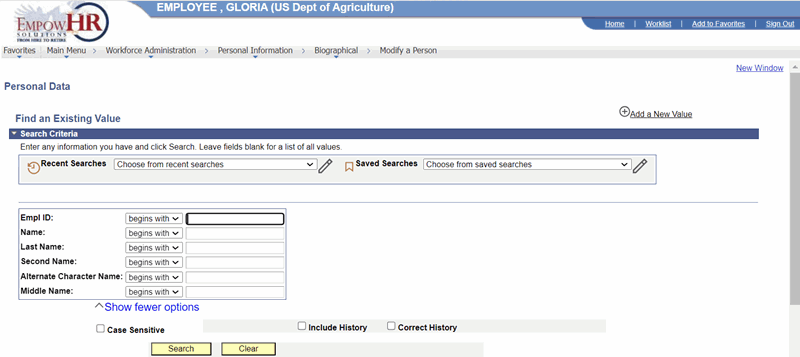
Figure 39: Personal Data Page - Find an Existing Value
- Select the Add a New Value link. The Personal Data Page - Add a New Value is displayed.
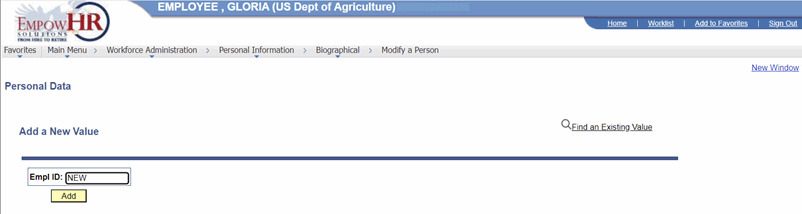
Figure 40: Personal Data Page - Add a New Existing Value
- Complete the field as follows:
|
Field |
Description/Instruction |
|
Empl ID |
Populated with New when you are adding a new person. The value will display as New until the record is saved. |
- Select the Add button. The Add a Person page - Biographical Details tab is displayed.
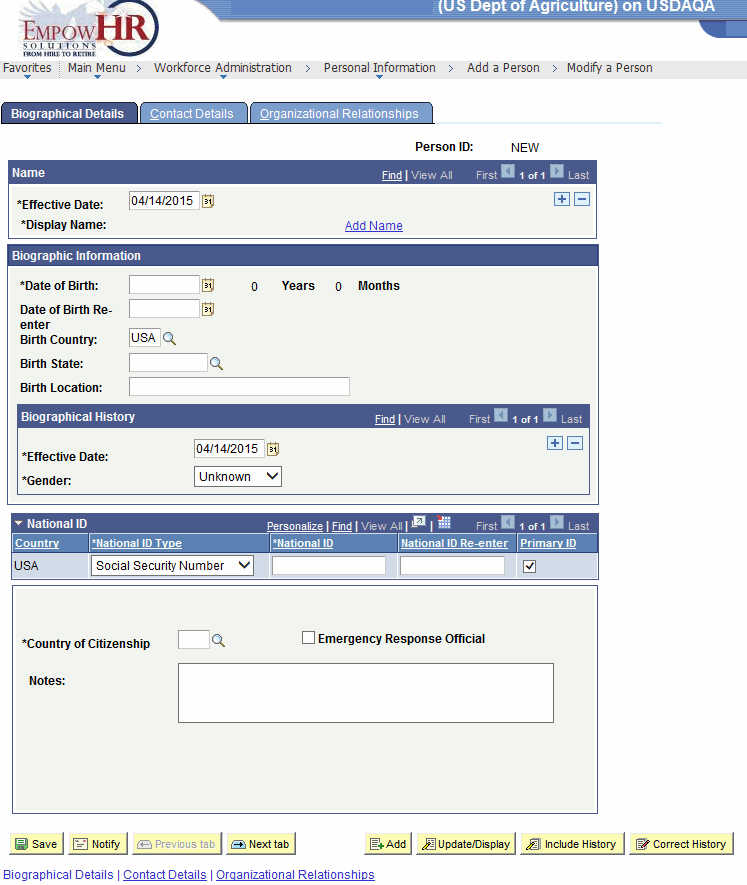
Figure 41: Add a Person Page - Biographical Details Tab
- Select the Contact Details tab. The Add a Person page - Contact Details tab is displayed.
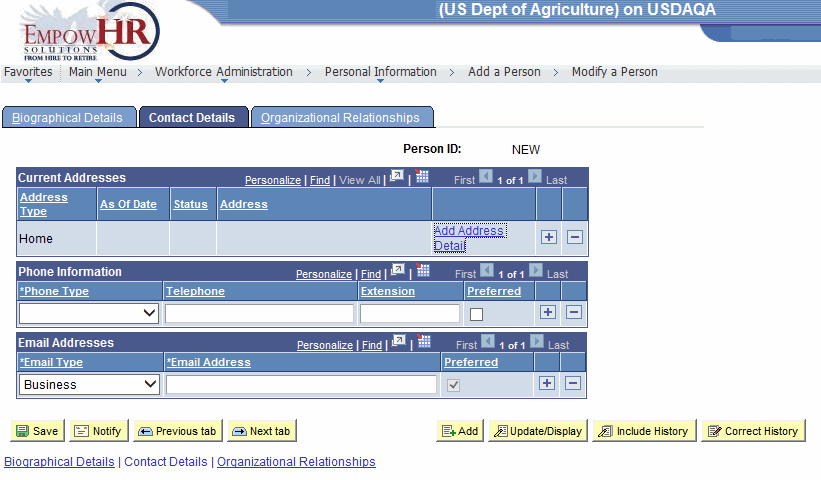
Figure 42: Add a Person Page - Contact Details Tab
- On the Add A Person page - Contact Details tab, select the Add Address Detail link. The Address History page is displayed.
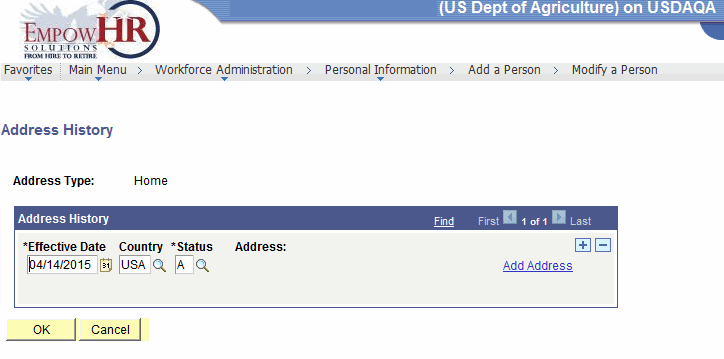
Figure 43: Address History Page
- On the Address History page, select the Add Address link. The Edit Address page is displayed.
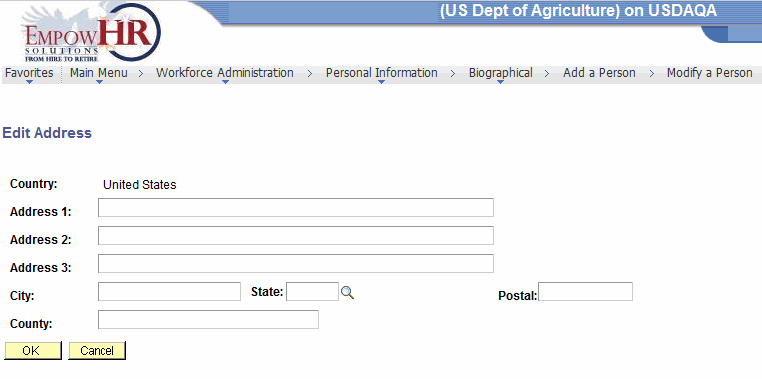
Figure 44: Edit Address Page
- Complete the fields as follows:
|
Field |
Description/Instruction |
|
Country |
System generated. |
|
Address 1 |
Enter the first line of the address. |
|
Address2 |
Enter the second line of the address, if applicable. |
|
Address 3 |
Enter the third line of the address, if applicable. |
|
City |
Enter the city. |
|
State |
Enter the State or select a State by selecting the search icon. |
|
Postal |
Enter the postal (ZIP) code. |
|
County |
Enter the county. |
At this point, the following options are available:
|
Step |
Description |
|
Select OK |
Accepts and saves the new data entered. The Address History page is displayed. |
|
Select Cancel |
Cancels the action. |